

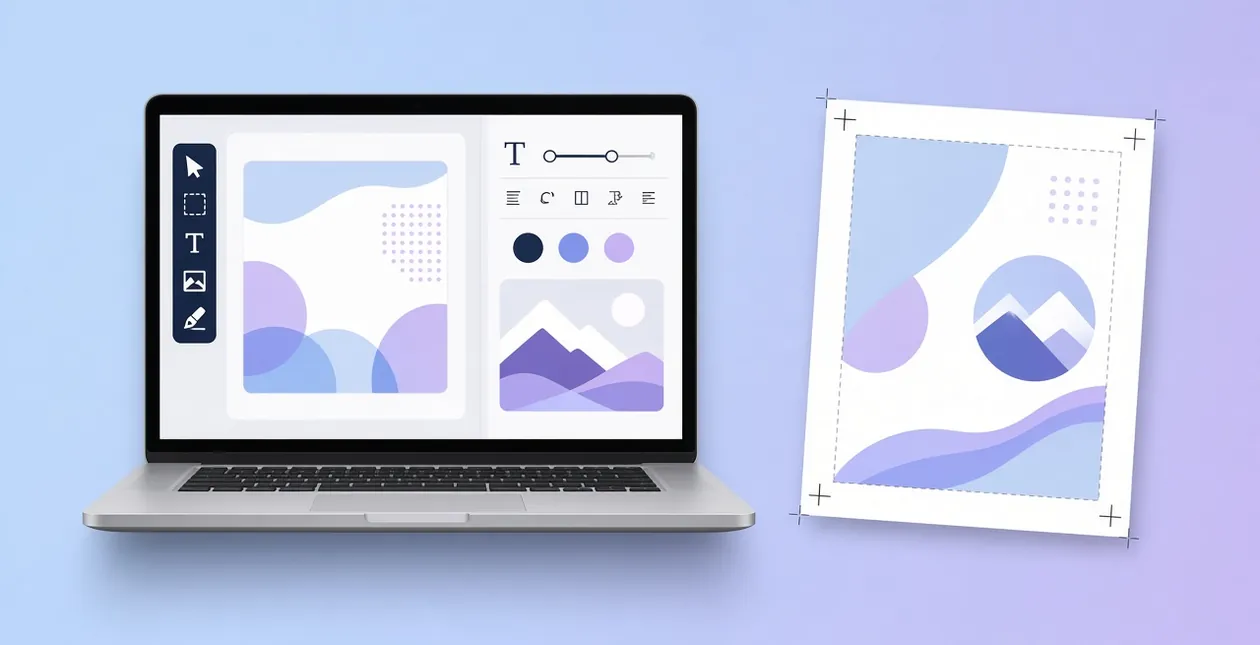
How to use Canva without getting the same design as everyone else comes down to four steps: set the size, treat the template as a grid, swap its five giveaways, and export for where the design is going.
A social post wants a PNG or WebP. A business card wants a PDF Print file with 0.125 inches of bleed.
How we checked: We read Canva’s help center and US pricing page on November 25, 2026. No new hands-on project, so the steps follow Canva’s docs. How we review software
What is Canva good at, and where does it struggle?
Canva is a browser-based design editor built around templates. You pick a format, drop in text, photos and shapes, and download the result.
The free plan goes a long way. Canva’s pricing page lists 1.6 million-plus templates, 4.7 million-plus photos, videos, graphics and audio files, and 5GB of storage on Free (checked November 2026).
It’s at its best for:
- Social posts, thumbnails and ads that need to go out today.
- Simple print jobs like flyers, posters and business cards.
- Presentations and one-page documents a team can edit together.
Where it struggles:
- Original brand marks. Logos built from templates or stock graphics can’t be trademarked (more on that below).
- Precise print work. Bleed and crop marks are fixed sizes, and CMYK export is a paid feature.
- Interface and product design. There are no real components or prototyping flows.
Want the full feature and pricing breakdown before you start? Our Canva review covers it.
How do you set up a Canva design at the right size?
Pick the size before anything else. Resizing a finished design later usually breaks the layout, and the automatic route is paid.
- On the Canva homepage, search for your design type (for example “Instagram post” or “business card”) and open a blank design. Canva’s presets already carry the right dimensions.
- Need exact dimensions? Select Custom size, pick a unit (px, in, mm or cm) and enter the width and height. Canva’s help center sets the minimum at 40 pixels a side.
- Use pixels for anything on a screen and inches or millimeters for anything you’ll print.
- Check the size against the platform or printer’s spec before you add a single element.
For print, the spec matters more than the template. Our business card size guide lists the standard sizes by country, so you’re not guessing at a US card versus a European one.
Already finished and need a second size? Magic Resize makes copies at new dimensions on paid plans, and each use counts against your monthly AI allowance.
Choose Copy & resize so the original stays untouched, then fix the layout by hand.
How to use Canva templates so they stop looking like templates
Templates are fine. The problem is using one exactly as it came, because thousands of other people saw the same thumbnail first.
Treat the template as a layout grid and change the five things people recognize:
- The font pair. Replace both fonts. One clear sans-serif for headings and one readable face for body text is enough.
- The palette. Swap the template colors for yours. If you don’t have a palette yet, our color theory guide shows how to build one, and these color palette sites give you starting points.
- The stock photo. Use your own photo, product shot or screenshot. A free stock photo works too, as long as it isn’t the one in the template.
- The decorative extras. Delete the leaves, squiggles, sparkles and badges you didn’t ask for. Most templates carry two or three too many.
- The spacing. Give the main message more room. Bigger margins and fewer elements read as deliberate.
Canva’s Styles panel speeds up the first two. Select the page, open Styles, pick a palette or font set and choose Apply to all pages.
Use Shuffle to try variations. Styles changes colors and fonts only, not the layout or artwork.
A quick test: put your design next to the template thumbnail. If a stranger could match them in two seconds, swap more.
Mistakes that make a Canva design look like Canva
Three or more fonts on one page. Stick to two.
Every element centered. Left-align body text and line things up to one edge.
Text on a busy photo. Add a solid block behind it or pick a calmer photo.
Elements touching the edge. Turn on margins (File, then Rulers and guides) and keep text inside them.
How do you keep fonts and colors consistent across designs?
Use a Brand Kit. You set it up once from the Brand section of the homepage, with your logos, colors and fonts, and every new design can pull from it.
Here’s the catch: the free plan’s version is thin. Canva’s pricing page lists 1 Brand Kit with 3 colors only on Free, and 5 Brand Kits on Pro (checked November 2026).
Custom fonts are a paid feature too. Canva’s font upload page limits uploads to Pro, Teams, Business, Education and Nonprofit accounts.
- Formats: OTF, TTF and WOFF. Variable fonts aren’t supported.
- Licensing: the font must be licensed for embedding, or it may not upload.
- Weights: upload the bold and italic files separately. Otherwise the B and I buttons stay greyed out.
On the free plan, write your two fonts and three hex codes in a note and reuse them by hand. It’s slower, but it works.
How do you make a business card, logo or social post in Canva?
The steps are the same for all three. What changes is the size, the export and one legal catch.
| Design | Start with | Export as |
|---|---|---|
| Business card | Business card preset, margins and bleed on | PDF Print, crop marks and bleed on |
| Logo | Blank square, fonts and simple shapes only | SVG or transparent PNG (paid) |
| Social post | The platform’s preset size | PNG, JPG or WebP |
Business cards. Turn on Show print bleed and extend background colors past the trim line. If you’d rather compare dedicated tools, see our business card maker roundup.
Logos. This is the one to be careful with. Canva’s trademark help page says logo templates are non-exclusive and can’t be registered as a trademark.
A logo you build from scratch with Canva’s fonts, simple lines and shapes can be. Stock graphics and illustrations can’t go in it, because other users can use the same ones.
If the logo has to be yours alone, design it from scratch or look at the logo design software we compared.
Social posts. Start from the platform preset, then de-template it. Product shots look cleaner with the background cut out; our guide to removing an image background covers the free and paid ways.
For device frames, try one of these mockup generators.
Which Canva export settings should you use for print vs screen?
Go to Share, then Download, and pick the file type. Canva’s download guide lists the options, and some settings depend on your plan.
| File type | Use it for | Good to know |
|---|---|---|
| PNG | Graphics, text, screenshots | Transparent background is paid |
| JPG | Photos | Quality controls are paid |
| WebP | Images for websites | Much smaller than JPG or PNG, per Canva |
| SVG | Logos and icons | Paid plans only |
| PDF Standard | Sharing on screen, 96 dpi | All plans |
| PDF Print | Printing, 300 dpi | CMYK option is paid |
Not sure between the image formats? Our JPG vs PNG vs SVG guide explains when each one wins.
For print, a few settings matter:
- Bleed is fixed. Canva adds 0.125 inches (3.175 mm) on every side for trimmed products, and you can’t change it. If your printer’s spec says otherwise, check with them before you send the file.
- Crop marks only appear in the PDF. Download as PDF Print, open Advanced Settings and turn on Crop marks and bleed. It’s off by default.
- Bright colors print duller. Canva’s print colors page warns that electric blues and hot pinks fall outside what ink can reproduce. Pick slightly softer shades and order one test copy first.
One privacy catch worth knowing: Canva says a PDF export includes the original, uncropped image. Anyone with a PDF editor could pull out the parts you cropped away, so delete anything you don’t want seen before sharing the file.
When should you leave Canva for another tool?
Canva covers most everyday marketing design. Move on when the job needs something it doesn’t do well:
- A logo you plan to trademark, or any detailed illustration: use a vector editor from our vector tools roundup.
- App or website screens with components and prototypes: see our Figma alternatives.
- Quick photo and video edits with a similar feel: our Adobe Express guide is the closest like-for-like comparison.
- Commercial print runs with strict specs: a printer who wants custom bleed or color profiles will be happier with a desktop layout app.
Canva FAQs
Is Canva free to use?
Yes. The Free plan costs US$0 and includes templates, stock media, 5GB of storage and PNG, JPG and PDF downloads. Pro is US$18 a month for one person on monthly billing, and Canva says yearly billing saves from 16%. Prices are from Canva’s US pricing page, checked November 2026.
What is Canva used for?
Canva is used for quick visual work: social media posts, presentations, flyers, posters, business cards, thumbnails and simple documents. Most people start from a template and edit it. It’s less suited to trademarkable logos, detailed illustration or app and website interface design, where dedicated tools do the job better.
Can you use Canva without a template?
Yes. Select Custom size on the homepage, choose pixels, inches, millimeters or centimeters, and enter your dimensions to get a blank page. You can also search the Create tab for a design type and open it blank. Starting blank is the safer route for a logo you want to own outright.
Can I upload my own fonts on the free plan?
No. Canva limits font uploads to Pro, Teams, Business, Education and Nonprofit accounts. Free users can only use fonts from Canva’s library. On a paid plan you can upload OTF, TTF and WOFF files, as long as the font license allows embedding, with up to 500 fonts per Brand Kit.
How do I download a Canva design with a transparent background?
Go to Share, then Download, choose PNG and turn on the Transparent background toggle. It’s a paid feature: Canva lists transparent downloads among the options limited to Pro, Teams, Business, Education and Nonprofit plans. On the free plan, the background downloads as a solid color, so plan around it.
Why does my Canva design look blurry when printed?
Usually it’s the wrong export. PDF Standard is 96 dpi, which is meant for screens, while PDF Print is 300 dpi. Canva’s help center also suggests downloading a flattened PDF or doubling the design’s dimensions if an online print shop shows it blurry. Low-resolution photos stay blurry whatever you export.
Does Canva save my work automatically?
Yes, edits save as you work, and Canva shows the save status in the editor. If your changes don’t save automatically, Canva’s help center says to select File, then Save. Saved designs appear under Projects on the homepage, where you can find, organize and reopen them later.
What happens if my design uses premium elements on the free plan?
You’ll be asked to pay before downloading. Canva gives three options: buy a Pro Content License for those elements, upgrade to a paid plan, or download a watermarked draft. To avoid it, filter for free elements or swap the premium ones out before you finish the design.
Is Canva the right tool for your project?
Now you know how to use Canva without the template look. Here’s the short version of who it suits:
- Use Canva free if you make social posts, slides and the odd flyer, because templates, presets and PNG, JPG and PDF downloads are all included.
- Pay for Pro if you need transparent backgrounds, your own fonts, Magic Resize or CMYK print files, because those are paid-plan features.
- Choose another tool if you need a trademarkable logo, detailed vector work or interface design, because Canva’s templates and stock graphics aren’t exclusive to you.
Our pick for most readers: start on the free plan, swap the five template giveaways on every design, and upgrade only when an export option blocks you.
Some links on this page are affiliate links. If you buy through them, we may earn a commission at no extra cost to you. It never changes our scores. How we make money.

[…] your card in Canva? Our Canva tutorial shows how to turn on bleed and export a print-ready […]
[…] guide on how to use Canva shows which logo builds stay […]