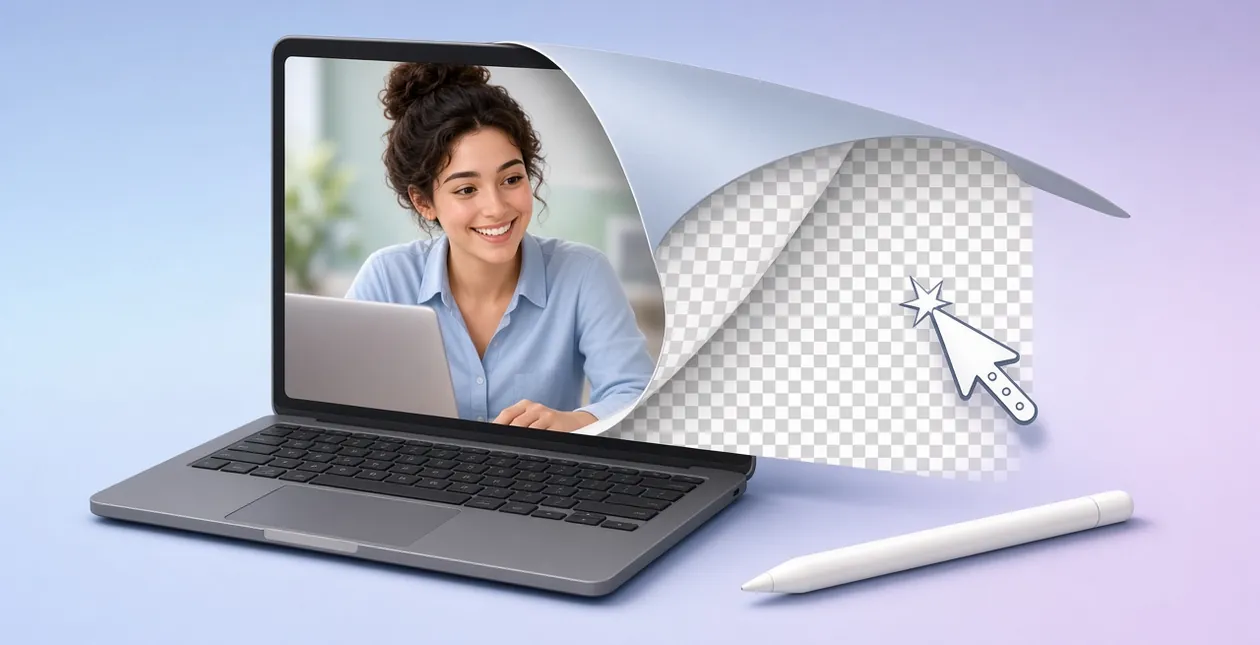
Here’s how to remove background from image files in one click, using any of the 5 methods below: open the photo in an AI remover, then download a PNG. When the AI misses hair or a white background, a mask or Color to Alpha fixes it.
Save as PNG. A JPG can’t hold transparency.
How we checked: Every step comes from a vendor help or docs page, opened on November 23, 2026. We didn’t test the methods on a photo, so this is research-based. How we review software
What’s the fastest way to remove a background?
Use the tool you already have open. The five methods below run from one click to a few minutes of manual work:
- An AI background remover in the browser: best when you have one photo and no software.
- Canva or Adobe Express: best when the cutout is going straight into a design.
- Photoshop, GIMP or Photopea: best when edges matter and you want a mask you can fix later.
- Built-in tools on Mac, iPhone, Windows and Microsoft Office: nothing to install.
- Color-based removal for a plain white background, like a scanned logo or a product on a white sweep.
Here’s the catch with all of them: the AI picks a subject, and it can guess wrong. Always check the edges on a dark background before you export.
Method 1: how to remove background from image files with AI?
Upload the photo, wait a few seconds, then download a transparent PNG. That is the whole flow.
Our roundup of online background remover tools compares eleven of them on price, free limits and watermarks. This guide is the how-to, so we won’t repeat that list.
What happened to remove.bg? It says its standalone website closes on 1 December 2026 at 9:00am CET, and that background removal is moving into Canva. Its own shutdown FAQ has the details for subscribers and API users.
Three habits make any AI remover work better:
- Start with the biggest file you have. A small upload gives the AI less edge to work with.
- Pick a photo where the subject and background differ in color or brightness.
- Check the cutout against a dark and a light background. Halos only show on one of them.
Free tools differ on resolution, watermarks and daily limits, so read the limits before you upload a batch.
Method 2: how do you remove a background in Canva or Adobe Express?
Some links on this page are affiliate links. If you buy through them, we may earn a commission at no extra cost to you. It never changes our scores. How we make money.
Canva: Background Remover in the Edit Image panel
In Canva’s Background Remover guide, the steps are: upload or pick an image, click Edit Image, choose Background Remover, then click Erase. Click Apply to keep the result.
Two limits are worth knowing. Canva says the tool handles images under 9MB, and anything above 10MP is downscaled to 10MP after the background comes off.
It also says you can remove backgrounds on up to 500 images every 24 hours, and the Erase and Restore brushes work only on canva.com and the desktop app.
The catch is the price. Canva’s pricing page lists remove background under Pro, at US$144 a year for one person (checked November 2026). Our Canva review covers what else that plan includes.
Adobe Express: one click in the Image panel
Adobe’s Remove Background help page (updated April 28, 2026) is short. Select the image in your design, then choose Remove Background in the left Image panel. Choose it again to restore the background.
Adobe adds a warning: the tool may remove fine details or low-contrast areas, so review the cutout and restore anything important.
One more catch: our guide notes that Adobe’s pricing FAQs list background removal as a Premium feature, so a free account may not get it.
For a transparent file, click outside the canvas, open Background, choose No fill, and download as a Transparent PNG. Our Adobe Express guide covers the rest of the editor.
Method 3: how do you remove a background in Photoshop, GIMP or Photopea?
Pick this route when the AI tools leave rough edges. You get a layer mask, so you can fix mistakes later instead of redoing the cutout.
Photoshop: Remove Background quick action
- Select the image layer in the Layers panel. Make sure it is not locked.
- Open the Discover panel with the search icon, or choose Help > Photoshop Help.
- Choose Browse > Quick Actions, then Remove Background.
- Refine the mask with the Brush tool on the layer mask if any edges are off.
- Save as PNG, or keep the PSD so the mask stays editable.
Those steps come from Adobe’s Photoshop help page, last updated February 23, 2026. Adobe’s tip is to start with a high-contrast image.
GIMP: Foreground Select
GIMP is free. In its manual, Foreground Select works like this: draw a rough outline around the subject, press Enter, paint a line through the foreground, then click Select.
The manual warns that the tool uses a lot of memory and can slow down or crash on large images.
Photopea: Magic Wand in the browser
Photopea runs in your browser, and its learning pages say your files never leave your computer. Its remove background tutorial uses the Magic Wand: click the background, adjust Tolerance and Contiguous, then press Delete.
Then export with File > Export As > PNG. Photopea says PNG is necessary because JPG doesn’t support transparent pixels.
Method 4: can you remove a background without installing anything?
Yes. Your phone or computer probably already has a remover.
- Mac (Preview): open the image and click the Remove Background button in the toolbar. Apple’s Preview guide says Preview may ask to convert the file to PNG. Choose File > Duplicate first if you want to keep the original.
- iPhone and iPad: open the photo, touch and hold the subject, then tap Copy or Add Sticker. Apple’s photo cutout page says this needs iOS 16 or later on an iPhone XS, XR or newer.
- Windows (Paint): Microsoft lists Background Removal as an AI tool in Paint for Windows 11, one click to isolate a subject. Its footnote says AI tools need a Microsoft account and availability varies by device and market.
- Word, PowerPoint or Excel: select the picture, then Picture Format > Remove Background. Microsoft’s Office help page lets you mark areas to keep or remove, and says it is grayed out for vector files such as SVG.
The iPhone method lifts the subject, so it suits stickers and quick pastes. For a transparent PNG file you can reuse, Preview, Paint or Canva are the better fit.
How do you remove a white background in one click?
A plain white background is the easy case, because you can remove it by color instead of asking AI to guess the subject. The two best-documented options are:
- GIMP Color to Alpha: add an alpha channel, then choose Colors > Color to Alpha and pick white. The GIMP manual says the defaults work well for a white background behind a black object.
- Photopea Magic Wand: click the white area, then press Delete. The tutorial suggests adjusting Tolerance and Contiguous until only the background is selected.
- Mac Instant Alpha: in the Markup toolbar, click and drag over the background color, then press Delete. Apple’s Markup guide describes the steps.
There is a catch. The GIMP manual says a gray object turns semi-transparent when you remove white, because gray sits halfway between white and black. Lowering the opacity threshold to 0.5 keeps gray and darker pixels fully opaque.
Pale subjects, such as a cream mug on white, will not survive a color-based removal. Use Method 1 or 3 for those.
How do you clean up hair, fur and soft edges?
This is where most one-click cutouts fail. Fine strands blend into the background, so the AI either deletes them or leaves a halo of the old color.
- Zoom in to 200% and check against a dark and a light color. That shows halos and missing strands.
- Use the restore brush first. Canva’s Restore brush brings back lost detail without starting over, and Adobe tells Express users to restore anything important.
- Paint the mask in Photoshop. Adobe’s tip is to refine the layer mask with the Brush tool, and hiding is non-destructive, so nothing is lost.
- Give GIMP more to work with. Foreground Select separates the outline into foreground, background and unknown pixels, so a slow brush along the hair line helps.
- Shoot or pick a better photo. A subject lit against a contrasting background gives every method an easier job.
If you are making a logo or an icon rather than editing a photo, skip the cutout entirely. Our guide to vector graphics tools covers apps that export clean edges at any size.
Which file format keeps the transparency?
Export as PNG. Adobe, Photopea and Canva all point to it for transparent cutouts, and Adobe’s own advice for Photoshop is to save as PSD or PNG to keep transparency.
- PNG: keeps transparency, including soft edges. Use it for logos, product cutouts and stickers.
- JPG: no transparency. Photopea says JPG doesn’t support transparent pixels.
- GIF: Adobe says GIF has no alpha transparency, so every pixel is either fully transparent or fully opaque. Soft edges get jagged.
- PSD: keeps the layer mask, so you can fix the edges later.
Where does the cutout go next? Put a product shot in a scene with the mockup generator tools, drop a logo onto a business card template, or test it on a logo design platform.
Headed for print? Our business card size guide covers the trim and bleed.
Background removal FAQs
How to remove background from image files for free?
Yes. GIMP and Photopea are free, and Windows Paint and Mac Preview have built-in tools. Canva’s remover sits under its Pro plan, and Adobe’s pricing FAQs list background removal as a Premium feature. Free options differ on resolution and limits, so check before a batch.
How do you remove a white background from an image?
Use color-based removal. In GIMP, add an alpha channel and run Colors > Color to Alpha with white selected. In Photopea, click the white area with the Magic Wand and press Delete. Export as PNG so the transparency survives.
Why does my cutout have a white or colored halo?
The edge pixels still carry the old background color, which shows up against a dark backdrop. Zoom in and refine the edge with a restore brush or a layer mask. Checking the cutout on dark and light backgrounds before export catches it early.
Why can’t I save a transparent background as a JPG?
JPG has no transparency channel, so transparent pixels are filled with a solid color. Photopea’s tutorial says PNG is necessary for this reason. Save a PNG for the cutout, or a PSD if you want to keep a layer mask.
Can you remove the background on an iPhone?
Yes. Open the photo in Photos, touch and hold the subject until an outline appears, then tap Copy or Add Sticker. Apple says photo cutouts need iOS 16 or later on an iPhone XS, XR or newer.
Does Microsoft Paint remove backgrounds?
Yes, in the Windows 11 version. Microsoft lists Background Removal among Paint’s AI tools, with one-click subject isolation. Its footnote says AI features need a Microsoft account and vary by device and market. If the button is missing, update Paint.
Is remove.bg still available?
Not for long. remove.bg says its standalone website will no longer be available from 1 December 2026 at 9:00am CET, with background removal moving into Canva. Subscribers and API users should read its shutdown FAQ for refund and migration details.
Can you remove a background from a vector or SVG file?
Not with these tools. Microsoft’s Office help says Remove Background is grayed out for vector files such as SVG. A vector logo can usually be exported with a transparent background from the vector editor that made it.
Which method should you use?
- One photo, no software: use an AI remover from our background remover roundup, then check the edges.
- A cutout for a design: use Canva or Adobe Express, because the result lands directly on your canvas.
- Hair, fur or client work: use Photoshop, or GIMP or Photopea if you want it free, and keep the mask.
- A plain white background: use Color to Alpha in GIMP, the Magic Wand in Photopea or Instant Alpha on a Mac.
- Nothing to install: use Preview, Paint, Office or the iPhone subject lift.
Most people should start with Canva or Adobe Express, and move to a mask-based editor only when the edges look wrong.