

To use the Surfer SEO Content Editor, start with a target keyword, review the competing pages, then draft and revise your article against the suggested topics. Keep the recommendations that genuinely help readers; a perfect Content Score is not the goal.
Here’s the current workflow in six steps: create the editor, tune the guidelines, write, then close the gaps and export. It also covers the Content Score to aim for and how many Surfer documents each plan gives you.
Older guides, our earlier version included, still show screens and credits that no longer exist.
What you need before you open the Content Editor
How we checked: We haven’t used Surfer on a live project for this update. The steps follow Surfer’s help center, the plan details come from its pricing page, and we checked both in October 2026. The two screenshots come from our earlier walkthrough, so their captions say what has changed. How we review software
You need three things: a target keyword, a plan with documents, and a couple of minutes for Surfer’s analysis.
Pick your keyword before you start. Our guide to keyword research in Surfer SEO shows how Surfer’s own tool works, though it needs Standard or higher. The Content Editor’s keyword box also suggests up to 10 related keywords with difficulty and volume.
Still deciding whether Surfer is worth paying for at all? Start with our Surfer SEO review, then come back for the walkthrough.
Which plan gives you enough documents?
Every Content Editor you create uses one document, whether you write the draft yourself or let Surfer AI write it. The current plans dropped the old split between editor credits and AI credits, and legacy accounts moved over as of May 18, 2026.
| Plan | Price | Documents | What it adds to the editor |
|---|---|---|---|
| Discovery solo writers | $49/mo billed yearly ($59 month to month) | 120 a year, or 10 a month on monthly billing | Content Score, Surfy and Facts; 1 seat |
| Standard small teams | $99/mo billed yearly ($119 month to month) | 360 a year, or 30 a month | Adds Auto-Optimize, plagiarism check, Google Docs, WordPress, sharing and comments; 3 seats |
| Pro multi-brand teams | $182/mo billed yearly ($219 month to month) | 360 a year, or 30 a month | Adds automated internal links, Topical Map, Audit and custom templates; 5 seats |
| Peace of Mind large teams and agencies | $299/mo billed yearly ($359 month to month) | Unlimited under fair use: 6,000 a year, or 500 a month | Adds SERP Analyzer and API access; 10 seats |
The plan most people need is Standard, billed yearly. It costs $1,188 a year for 360 documents, about $3.30 each, while Discovery’s $588 buys 120, about $4.90 each. Discovery is the cheaper bill, not the cheaper document.
The catch: Discovery is Surfer’s cheapest plan, but it lacks Auto-Optimize, the plagiarism checker, shareable links and comments. It has no Google Docs or WordPress integration either, so start on Standard if anyone else edits your drafts.
Skip the AI Search Analytics plan ($82 a month billed yearly) for this job. It tracks how AI tools mention your brand and includes no documents.
New accounts can test Pro free for seven days with a card on file (Surfer’s trial rules). Our Surfer SEO free trial guide walks through the sign-up.
Already paying for Semrush Pro+? That plan lists content optimization tools, so test them before you add a second subscription (see our Semrush review).
How to use the Surfer SEO Content Editor, step by step
These steps follow the setup wizard in Surfer’s Content Editor overview, updated in October 2026.
Step 1: Create the editor and run the analysis
- Open Content Editor in the left menu and select + New Content.
- Type your main keyword. Then choose the location, language and device (desktop or mobile) you want to rank on.
- Select Create-Deep analysis. Surfer takes a couple of minutes to study the ranking pages, and you can fill in the next screens meanwhile.
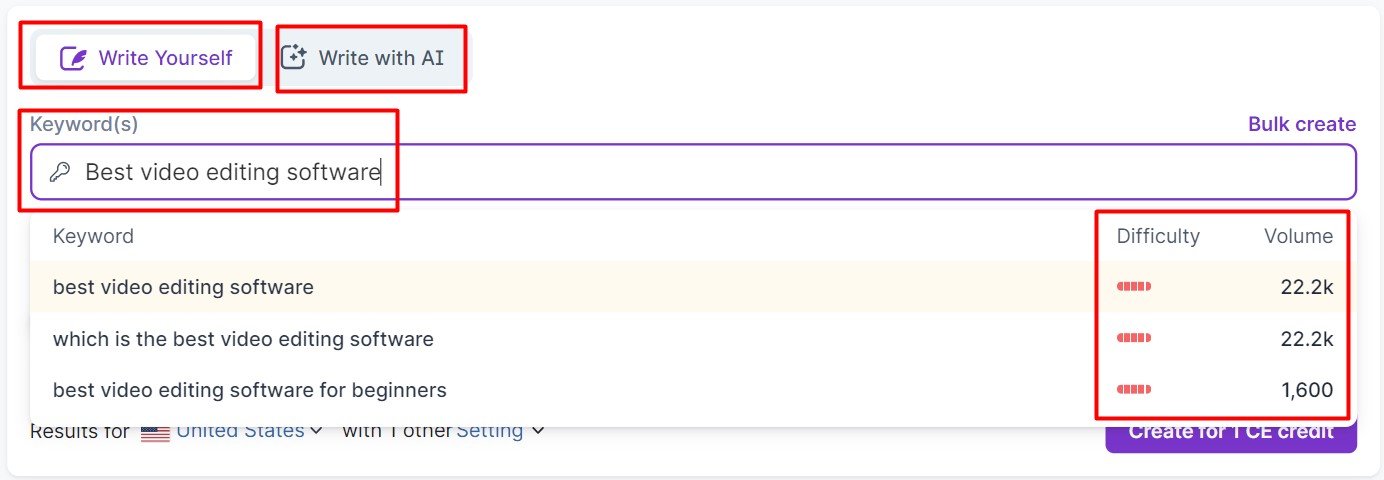
Optimizing a post that’s already live? Use Import from URL at the top of the Content Editor section instead. It pulls in your page’s text and uses a document, but skips the template and instruction screens in Step 2.
Step 2: Set the template, context and writing mode
Choose the template that fits your piece, then select Next-Context & instructions. Custom templates built from your own articles need Pro or higher.
On the context screen, review the ranking pages and adjust the suggested word count. You can add instructions with up to five source URLs, too.
Those instructions matter most if Surfer AI will write the draft. Brand Knowledge needs Standard or higher, and custom brand voices need Pro or higher.
Then pick a writing mode. Write it yourself opens an empty editor with guidelines. Generate content has Surfer AI build the outline and the article, which takes about 20 minutes.
Either way it’s one document, and our Surfer AI explainer covers the AI route.
Step 3: Check competitors and terms before you write
Open the gear icon to reach the Customization Panel. Skip it, and your guidelines copy whatever Surfer picked, including pages you can’t or shouldn’t compete with.
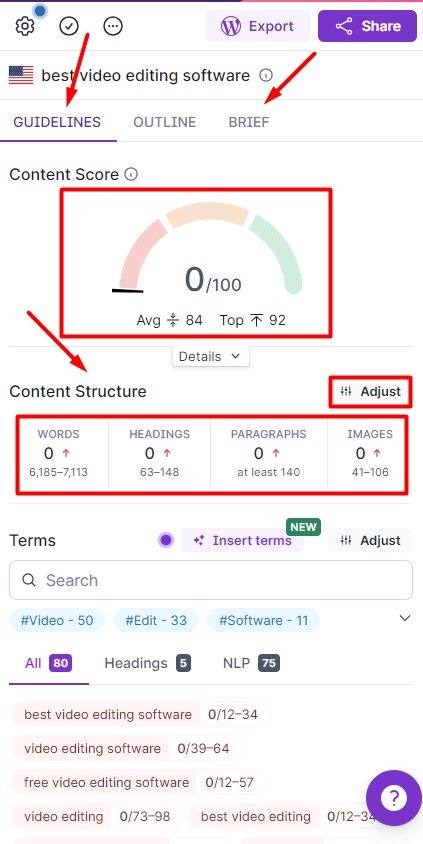
- Competitors: Surfer picks five of the top ten pages by Content Score. Untick big sites doing a different job, such as Wikipedia or YouTube, and keep at least three different domains.
- Structure: adjust the word, heading, paragraph and image targets when one competitor is an outlier.
- Terms: drop irrelevant phrases, flag terms for headings, or paste in your own secondary keywords in bulk.
- Topics and questions: tick the ones you’ll answer. They come from competitors, Google’s People Also Ask box and Surfer’s own database.
Every change can lower the highest score you can reach. That’s fine, because a clean benchmark beats a bigger number.
Step 4: Generate the outline and write the draft
Open Research & Create Outline, pick a template and select Generate Outline. The headings land in the editor with relevant terms already in them. The same tab lists competitors’ outlines and a notes box for writers.
Now write under each heading. The Write & Optimize step updates as you type, so you can always see which terms and facts are still missing.
Stuck on a section? Highlight it and select Ask Surfy, or type /ask, to rewrite, expand or format it. Surfy runs on its own token pool, separate from your documents.
Add images as you go. They count toward the structure target, and a suggested term in an image’s alt text counts toward the score.
Step 5: Close the gaps with Facts, terms and Auto-Optimize
Once the draft is near its target length, open the AI Search section of Write & Optimize and check Facts. It lists the facts that top-ranking pages and AI answers include, with their sources, and it’s on every plan.
Next, work down the terms list from the top, where the most important ones sit. Put prominent terms in headings and spread the rest where they read naturally.
On Standard and above, Auto-Optimize handles both jobs in one pass. It rewrites sections to add missing terms and facts. You approve or undo each change, then select Save & Close.
Pro and Peace of Mind add an Internal Links step. Connect Google Search Console, and it suggests links to your own pages that you can accept, edit or decline.
Step 6: Run the pre-publish checks and export
Pre-Publish Review scores readability and, from Standard up, runs the plagiarism checker. The checker needs at least half the suggested word count, and each run takes up to 10 minutes.
Publish or Export suggests a meta title and description. From there, copy the text as plain text, HTML or Markdown, or download it as a file.
On Standard and above, Surfer’s plugin can also send the draft straight to WordPress. Select Mark as done when you finish.
Some links on this page are affiliate links. If you buy through them, we may earn a commission at no extra cost to you. It never changes our scores. How we make money.
How to tell the Content Editor did its job
The Content Score runs from 0 to 100 and blends two parts. The SEO Score tracks terms, structure and coverage against the top pages. The AI Search Score tracks facts coverage and how early you answer the main question.
Surfer’s Content Score guide sets the bands. Below 33 needs more work, 33 to 66 is reasonably optimized, and over 66 is ready to compete.
A perfect 100 is usually out of reach, and that’s fine. Aim for 10 to 20 points above the competitors you kept; Surfer itself warns that over-optimizing can hurt the final article.
The score is a proxy, not the result. After you publish, watch the page in Google Search Console. Surfer’s own workflow suggests a refresh after about three months.
Mistakes that waste documents, and how to fix them
Creating editors you don’t need. Every new editor uses a document, including ones started from the Google Docs extension, Import from URL or bulk creation. Make one editor per article and reopen it for later edits.
Chasing 100. Stuffing terms to beat the field by 30 points makes the copy worse. Read the draft aloud and cut any term that sounds forced.
Running Auto-Optimize on a half-written draft. A run counts once it produces a suggestion, even if you decline every change. Finish the draft, then run it once.
Publishing the AI draft as is. Surfer warns that its AI can insert incorrect links, so check every claim and link before the page goes live. Our take on how AI content writing can hurt your SEO explains what’s at stake.
Surfer Content Editor FAQs
Is there a free way to try the Surfer Content Editor?
Only the trial. New accounts get seven days of the Pro plan, but Surfer starts the paid plan you chose at checkout unless you cancel under Settings, then Billing, before the week ends. A card already used on a Surfer account isn’t eligible, and a cancelled trial account expires along with your stored work.
Do unused Surfer documents roll over?
No. On monthly billing, documents reset every month and leftovers disappear. Annual plans hand you the whole year’s allowance on day one, but whatever is unused when the year ends is gone too. Upgrading mid-term also resets your limits, because the new plan’s allowance replaces the old one instead of adding to it.
Does the Content Editor work in languages other than English?
Yes. Surfer builds guidelines from the pages ranking in your chosen location, so its core tools work in any language. For Spanish content aimed at US readers, use a Spanish keyword and the United States – ES location. Surfer AI article writing covers a shorter list of languages, and the Humanizer is only fully supported in English.
Can a writer without a Surfer account use your Content Editor?
Yes, on Standard and above. The Share button creates a link anyone can open without logging in, and they’ll still see the guidelines as they write. Each draft has one shareable link, so select Reset link to cut off access. Facts and version history aren’t available through shared links.
Does the Content Editor work with Google Docs and WordPress?
Yes, on Standard and above. Surfer’s Chrome extension shows your guidelines beside a Google Doc, but it syncs guidelines only, so copy text between the two yourself. The WordPress plugin supports Gutenberg, the Classic Editor and Elementor, needs PHP 8.3 or newer, and moves drafts in both directions.
Why does the Content Score show 0?
Usually because the competitors you kept come from fewer than three different domains, which Surfer needs to calculate a score. It also happens when the top results are pages Surfer can’t crawl, such as PDFs. Editors created before Content Score launched in July 2020 show 0 as well, so create a fresh one.
How many keywords should one Content Editor target?
Usually one main keyword, which is what Surfer’s own guide suggests, although each editor accepts up to 20. Add close variants that return the same search results, not separate topics. A different topic needs its own article and its own editor, which uses another document.
Is content written with Surfer AI against Google’s rules?
Not by itself. Google’s published guidance says appropriate use of AI or automation isn’t against its guidelines. Content generated mainly to manipulate rankings does break its spam policies, so a Surfer AI draft still needs a human edit for accuracy, originality and voice before it goes live.
Can a deleted Content Editor be restored?
Yes. Surfer keeps backups of every Content Editor, so contact support by chat or email with the query link or the keyword you used. For older versions of a live draft, use Version History instead: it keeps one day of backups on Discovery, a week on Standard, a month on Pro and six months on Peace of Mind.
Is the Surfer Content Editor worth it for you?
The Surfer SEO Content Editor pays off when you publish often. It puts the brief, the score and the edits in one place.
- Use it if you publish SEO articles every week, because it turns ranking pages into a brief and tells you when to stop.
- Choose another tool if you’d rather pay once. WriterZen sells a $150 one-time plan with 50 Content Creator articles a month (checked October 2026). A lifetime deal is only as good as the company behind it, so read our WriterZen free trial guide first. Semrush Pro+ users should test its content optimization before adding Surfer.
- Our pick: Standard billed yearly, because it’s the cheapest per document of Surfer’s three lower plans. It also adds Auto-Optimize and the Google Docs and WordPress integrations. Choose Discovery only if you write alone, inside Surfer, and publish 10 articles a month or fewer.



[…] No importer fixes weak content, because a plugin manages metadata, not page quality. If your pages need work, see our Surfer SEO review and our guide to the Surfer Content Editor. […]